
Embed survey buttons right in your Outlook signatures.
Add feedback and rating buttons directly to Outlook email signatures. Customers simply click to leave a rating and can also leave a comment. Our Outlook signature email survey tool can alert you in real time to unhappy customers, or direct the feedback into Teams, Slack and more.
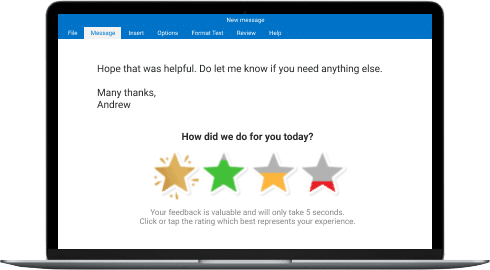

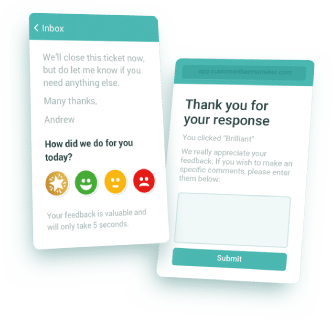
Individuals and teams across the world send billions of emails a year using Outlook. Many are destined for customers, prospects, partners and stakeholders.
But do you really know what those recipients think of the emails you send? With customer experience now such a major competitive advantage, give your customers the chance to tell you how you are doing in real time, in a way that’s convenient for them.
Customer Thermometer’s Outlook signature survey is unique, brandable, engaging and gets results. It’s the antidote to long surveys; customers love using it.
3 easy ways to get your signature survey
Outlook is the most popular email service in the world. We have 3 easy ways for you to
create your Outlook signature survey:



Need an Outlook Signature Management tool?
We partner with Exclaimer to integrate seamlessly into Exclaimer’s cost-effective signature management solution to imprint signatures and feedback options automatically into your email.

And what happens when customers click?
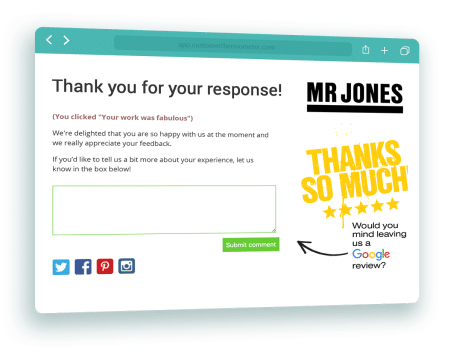
They leave a comment on a brandable, context-sensitive landing page. It can even help you drive positive online reviews!
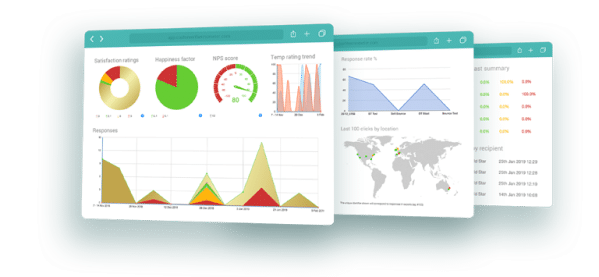
You see a real-time set of out of the box reports detailing how your team is performing.
Not sure what you need? Compare the features
| 365 Add-in | Signature Manager | Standard Signature | |
|---|---|---|---|
| Identify recipient automatically | |||
| Rapid mass roll out (1000 users +) | |||
| Attribute feedback to a single email message | |||
| Ideal for a single user or small number | |||
| Capture feedback and comment | |||
| Real time reporting | |||
| Real time alerts | |||
| Full API and webhooks | |||
| NPS | |||
| Custom icons |
Take our Outlook signature survey for a test drive.
Get an account and 10 surveys completely free.
- No credit card requiredOnce you’ve tested us out, upgrade and receive a monthly credit allowance.
- Fully functional accountStart sending surveys which get results, in the next 10 minutes.
- Be prepared for your response rateTake action on all your feedback – you might be surprised just how much you will get.
By creating an account, you agree to our terms & privacy policy.
The market leader in engaging feedback

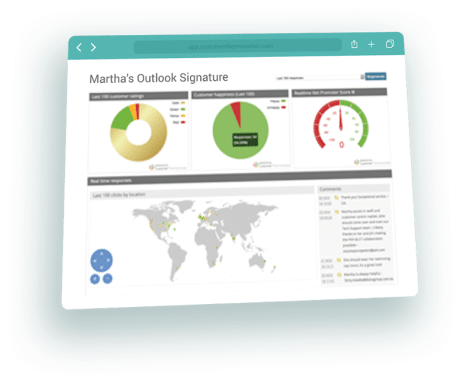
Full, out-of-the-box reporting with a real-time dashboard overview
Gain useful and actionable feedback with metrics ranging from CSAT and NPS to TempTracking and league tables. View or export your data to use it how you choose, see a live comment stream and the geolocation of responses, track targets and schedule reports for when you need them. Not only this, but you can use webhooks to trigger actions inside other apps, and we offer many integrations to write back your data into your system.

Award-winning customer service
Because of our hard work, we’re very pleased to say that we’ve grabbed a few awards over the years. We value good – magical – customer service so much that our support team have been nicknamed ‘the Ministry of Magic’! We want every customer to get the best from our software and to feel supported along the way, and it’s our goal to be the world’s best company to work with and for.
Feedback no matter what size you are
From startups to global brands, thousands of customer-obsessed companies
in over 160 countries use Customer Thermometer




Customer Thermometer integrates with 100s of other services
 gmail
gmail
 Zendesk
 Salesforce
 ServiceNow
 ConnectWise

How To Create Surveys in Outlook
It isn’t unusual to send tens of emails every day. And every email represents a touch point, a mini-marketing opportunity to request real-time feedback about your business and even about the people who work there. It’s a great match. Add a super-simple one-click survey to your email signature and you open the doors to genuinely impressive response rates.
Timing, speed and simplicity sit at the heart of every great customer survey. Embedding surveys in Outlook emails is the perfect way to achieve a response rate worth having, much better than those you get from ordinary surveys. Here’s what you need to know about making a high impact, insightful survey in Outlook, something people will be delighted to answer.
Test drive 10 FREE surveys and feel the power!
Would you like to give it a go? We’re giving away ten FREE Outlook survey email campaigns so you can play with the system, see how easy and enjoyable it is to run campaigns, how simple it is to create high-impact surveys that people genuinely like to answer.
Follow this link to set up your free trial and enjoy amazing response rates.
Our clients see response levels as high as 80%. Some enjoy ten-fold increases in response rates compared to traditional old-school surveys. One has seen an incredible 750% response rate hike. And the percentage of people who leave extra comments is impressive, too. How does 66% sound? Can you achieve that? And what would you do with all that lovely data and insight? Give it a go and see.
A 12 step summary of our Outlook signature email surveys
You’ll be thrilled at how easy it is to build powerful Outlook email signature surveys with Customer Thermometer. Here’s our quick summary guide to building an Outlook survey email, in 12 intuitive steps.
- If you use MS Office Outlook 2000 or above, you’re all set.
- Open a Customer Thermometer account, ready in seconds.
- Set up your Outlook thermometer and landing pages – it’s simplicity itself, and we’ve provided a nice, clear video to guide you.
- Click the ‘generate HTML’ button on your Customer Thermometer dashboard.
- Download the four icons you want people to click, one at a time, saving them to your desktop.
- Open a new Outlook message and click on the ‘signature’ button,
- Here’s where you add your text and upload the four icons – it literally takes seconds.
- Create the links that go with your icons. Again, it’s very simple and quick thanks to our famously user-friendly interface. You might want to customise them for the signature you’re setting up, for example including a name, department or location.
- Clicking ‘generate hyperlink’ joins the dots, and you’ll see four links pop up.
- Copy and paste the links one by one into your Outlook signature.
- Hit ‘save’ and that’s it – you’ve created an email signature survey for that particular sender.
- If you want to use the same survey for multiple senders, that’s easy too. Just change the relevant fields to create new links.
There’s more handy information about how to insert a survey in Outlook, here.
Asking for customer email addresses
Because Outlook is designed for static signatures, our Outlook signature Thermometers are always anonymous. But there’s a cool little work-around to help you collect those all-important email addresses from customers. You can choose to enable email address capture inside the interface, which sends people a short written request for their email address once they’ve clicked on a survey icon.
This is another great mini-marketing opportunity. The shorter, sweeter, friendlier and more powerful you can make your request, the more likely people are to hand over their email addresses. There’s also the opportunity for them to say ‘no thanks’ to your request, a positive thing in itself since it lets people know you care about the privacy of their personal data. At this stage you can also programme the system to ask for extra comments, getting valuable fine detail alongside the headline rating.
- If you don’t enable email address capture, the system will send alerts for all your responses.
- If you enable email capture you’ll only get alerts when someone gives you their email address.
- If comments are enabled, you’ll get alerts for every comment you receive whether or not someone gives you their email address.
Creative inspiration – Check these out!
The more attractive, intriguing and relevant you can make your email signature, the better. Here’s some inspiration for you, in the shape of 20 cool email signatures. And here are some tips to help you maximise the opportunity.
- Don’t forget you can survey staff as well as customers.
- Plain language beats jargon and corporate speak every day of the week.
- Short, sweet and simple questions are better than long winded and detailed.
- Colour has a big emotional and visual impact.
- Your brand matters, so make the most of colour, tone of voice and other brand attributes.
- Make it enjoyable, even fun if you can.
- Remember imagery grabs people’s attention.
- Make it personal – you could include a cartoon or other image of the sender, for example.
- Ensure your design is mobile friendly.
- The faster you respond to feedback, the better.
Make one-click surveys in Outlook work for your business
Our clients use Outlook signature surveying to pin down all sorts of vital information. If you’d like to ask a question that isn’t answered on our site, feel free to contact us. We’re always glad to help.