
Microsoft Dynamics integration instructions
Integrating Microsoft Dynamics with Customer Thermometer
1) Here’s how embedded surveys work
To get a general overview of how to embed our 1-click surveys in another app, simply watch this quick video.
In the next video, we’ll get specific on how to set things up with Microsoft Dynamics. It’s usually all done in under ten minutes.
2) Integrating your Microsoft Dynamics with Customer Thermometer
The instructions below shows you how to quickly setup Embedded Thermometers with your Microsoft Dynamics account.
It’s a matter of copying and pasting a snippet we provide into MS Dynamics and you’re ready to roll…
Microsoft Dynamics survey – hooking together MS Dynamics and Customer Thermometer
1) Log in to your Customer Thermometer account and click “Manage thermometers.” Then click the “Embedded thermometers” tab and then “Create new embedded thermometer”.
2) Choose “MS Dynamics” from the dropdown at the top.
3) Fill in all the fields and click to generate the HTML code you will need to enter into your MS Dynamics.
4) The most regularly-used fields are auto-populated at this point in the grey boxes but you can add any other fields you like:
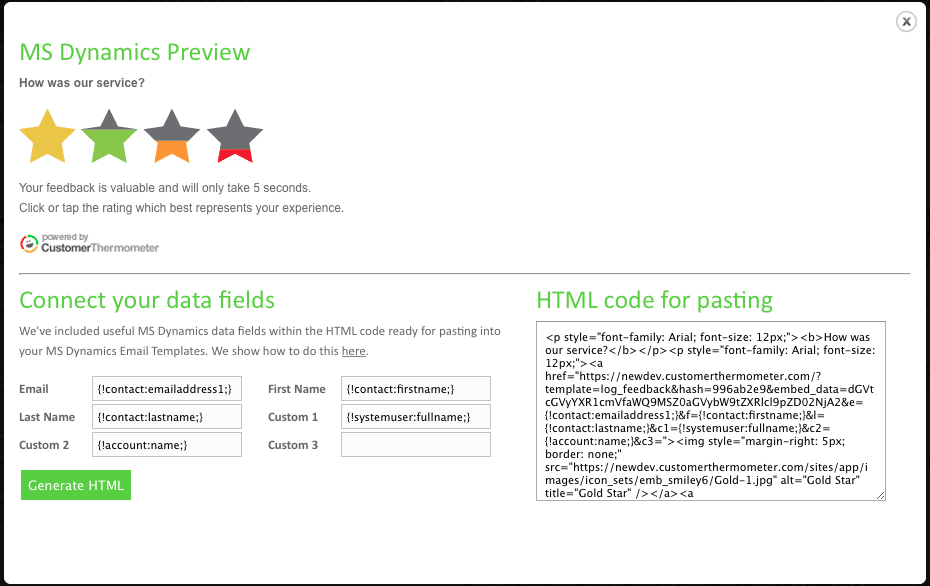
5) Copy the HTML generated in the box on the right hand side.
6) In MS Dynamics, go to “Settings” >>”Options” >> “Email Templates”.
7) Click “New” to create a new email template (or edit an existing one), it doesn’t matter which type you use.
8) Then paste in the HTML that’s been generated by Customer Thermometer.
9) Once that’s been pasted in, save it. If you then go back in to edit it, you can see that the fields have gone yellow. This shows that they are correct and correspond to Microsoft field codes.
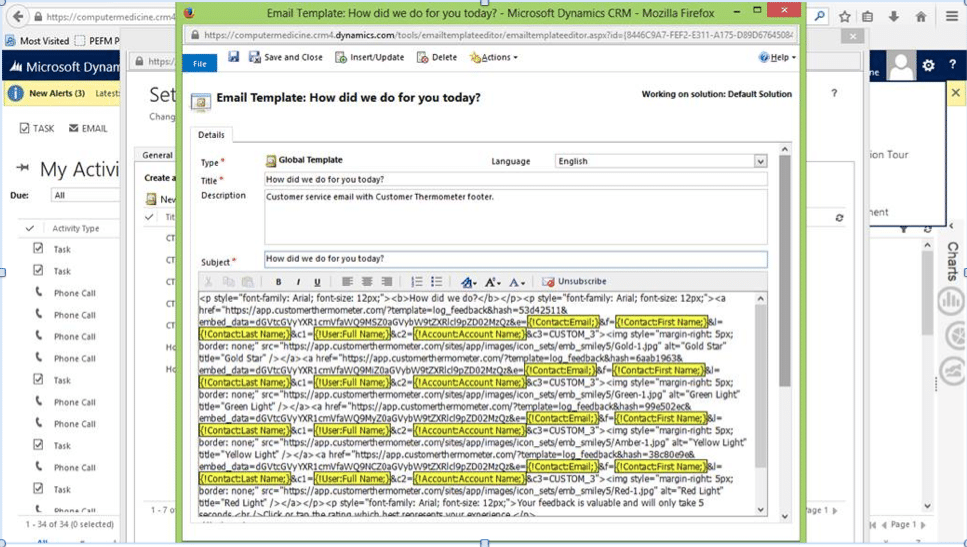
10) This email template is then available throughout the application and you can send it whenever you like by clicking ‘insert template’ on the appropriate email screen
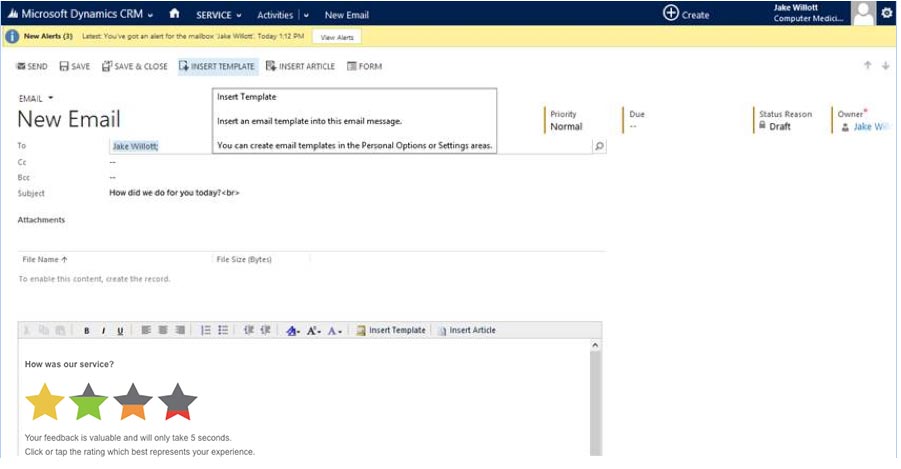
11) Your Customer Thermometer and Microsoft Dynamics integration is now ready for use. Both systems are connected, and the clicks and feedback will be registered, alongside your customer data from Dynamics in the Customer Thermometer reporting!